Appearance
Compare (A/B)
Compare puts the stereo master of your mix beside the immersive master, so you can A/B them with one click and check that the two deliverables match. Both play sample-locked from the same point.
INFO
The Compare screen in Orbit Lite 1.3.0 still shows a Beta badge. Compare is a full feature in 1.3; the badge is removed in 1.3.1.
Open Compare
- Choose File ▸ Compare… (⌘⇧O), or
- click the Stereo Master square on the right of the transport bar (it reads + Add Stereo Master… until you add one).
Add the stereo master
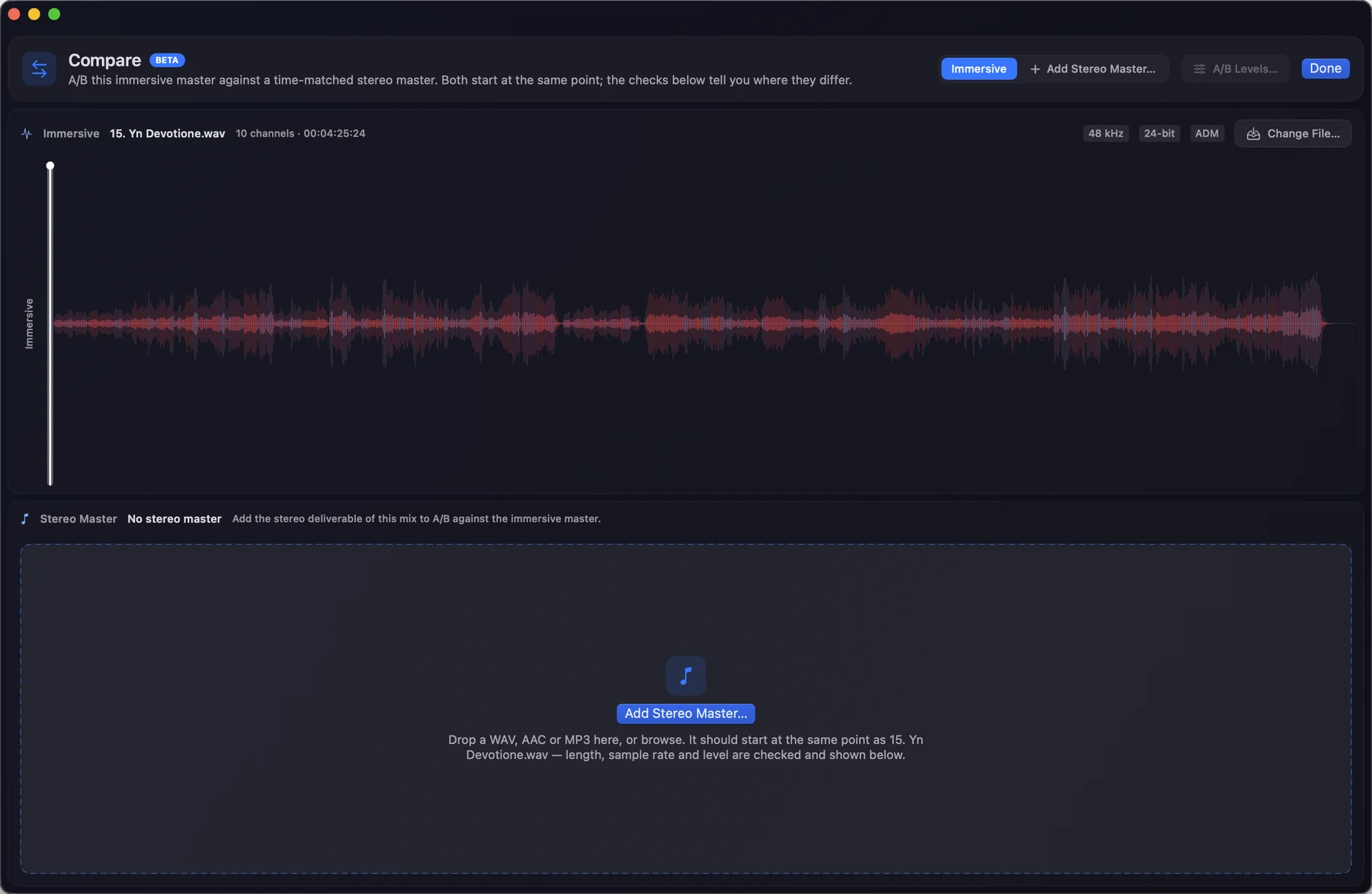
With the Compare screen open, drop a stereo master onto the window, or click Add Stereo Master… and browse. Dropping a file anywhere else loads it as the immersive master instead. The stereo master should start at the same point as the immersive master.
Stereo masters must be WAV, AAC or MP3. AIFF and CAF are refused on purpose, with this message:
Stereo masters must be WAV, AAC or MP3. Export this AIFF master as a WAV and add it again.
Orbit Lite won't convert a file for you, because the checks would then describe a file you didn't pick. Export a WAV and add that instead.
Read the checks
Once you pick a stereo master, Orbit Lite checks it against the immersive master and summarises the result in one card: All good, or N to review.
| Check | What you'll see |
|---|---|
| Channels | "Stereo · 2 channels". A mono file is accepted too: "Mono · played on both channels". |
| Codec | "WAV used directly". AAC and MP3 are decoded to PCM ("AAC-LC decoded to PCM", "MP3 decoded to PCM"); the decoded copy is kept in Orbit Lite's cache for this session only, and your original file is untouched. |
| Sample rate | "48 kHz matches the master", or a review item saying it's resampled to match. |
| Length | "Length matches the master", or a review item saying how much shorter or longer it is. A shorter master plays in time and goes silent at its end; the extra part of a longer one isn't played. |
| Level | When the immersive master declares its loudness, the whole stereo master is measured against it: "Level matches (within 1 LU)", or a review item saying it's louder or quieter than the immersive mix. Without a declared loudness you'll see "Immersive loudness not declared — compare by ear". |
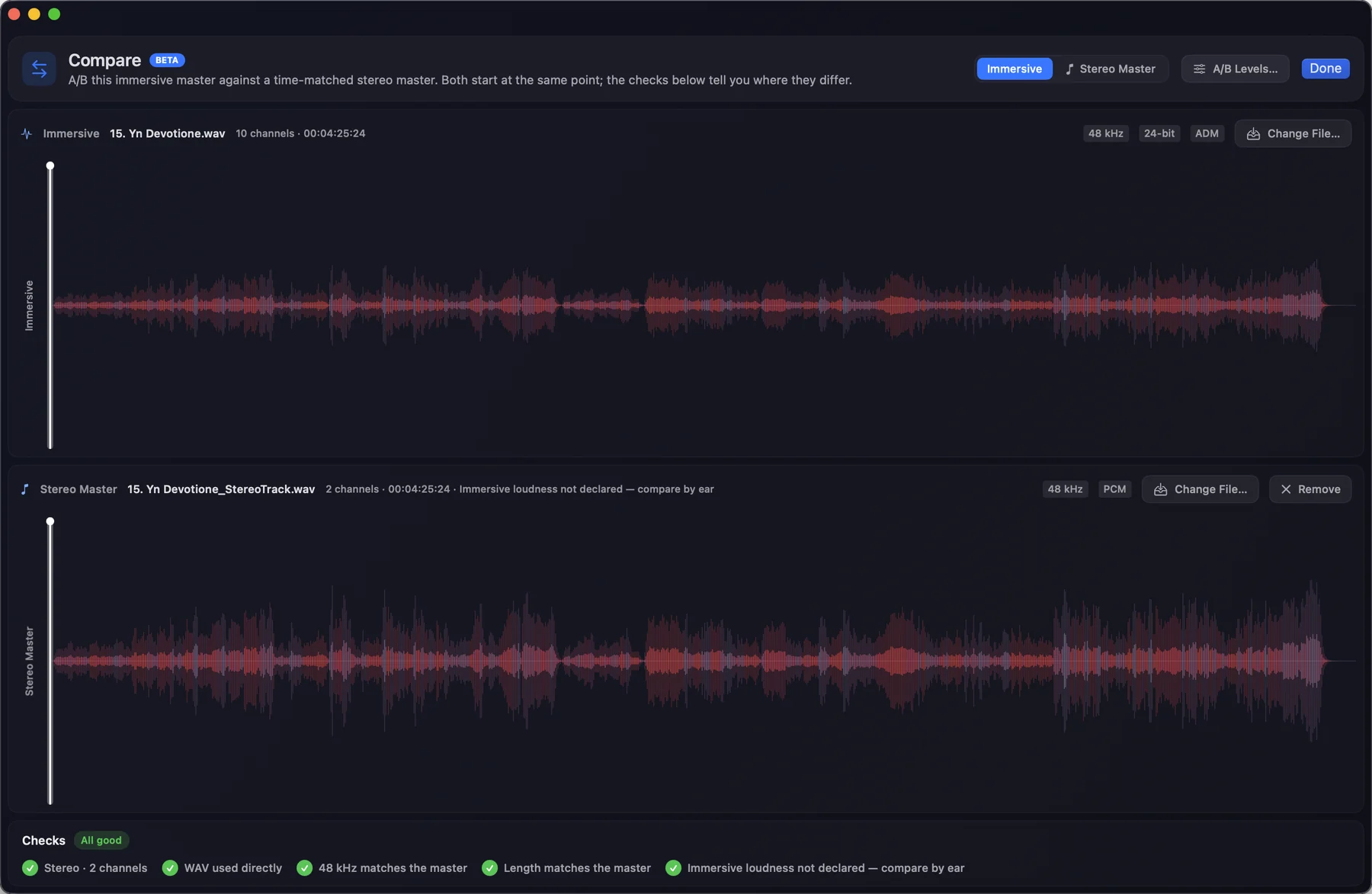
Nothing on the card blocks you. When there's something to review, the button reads Keep Anyway instead of Add Stereo Master. A stereo master of a different length shades the stretch it doesn't cover.
Switch between them
Press ⌘⇧A, or choose Monitoring ▸ A/B, to flip between Immersive and Stereo Master while playing. The side you're listening to is tinted in the transport bar.
On the timeline, the A/B view stacks the immersive master over the stereo master on one time scale, with a single playhead. The side you're hearing draws bright and the other dims. Click either lane's label to switch.
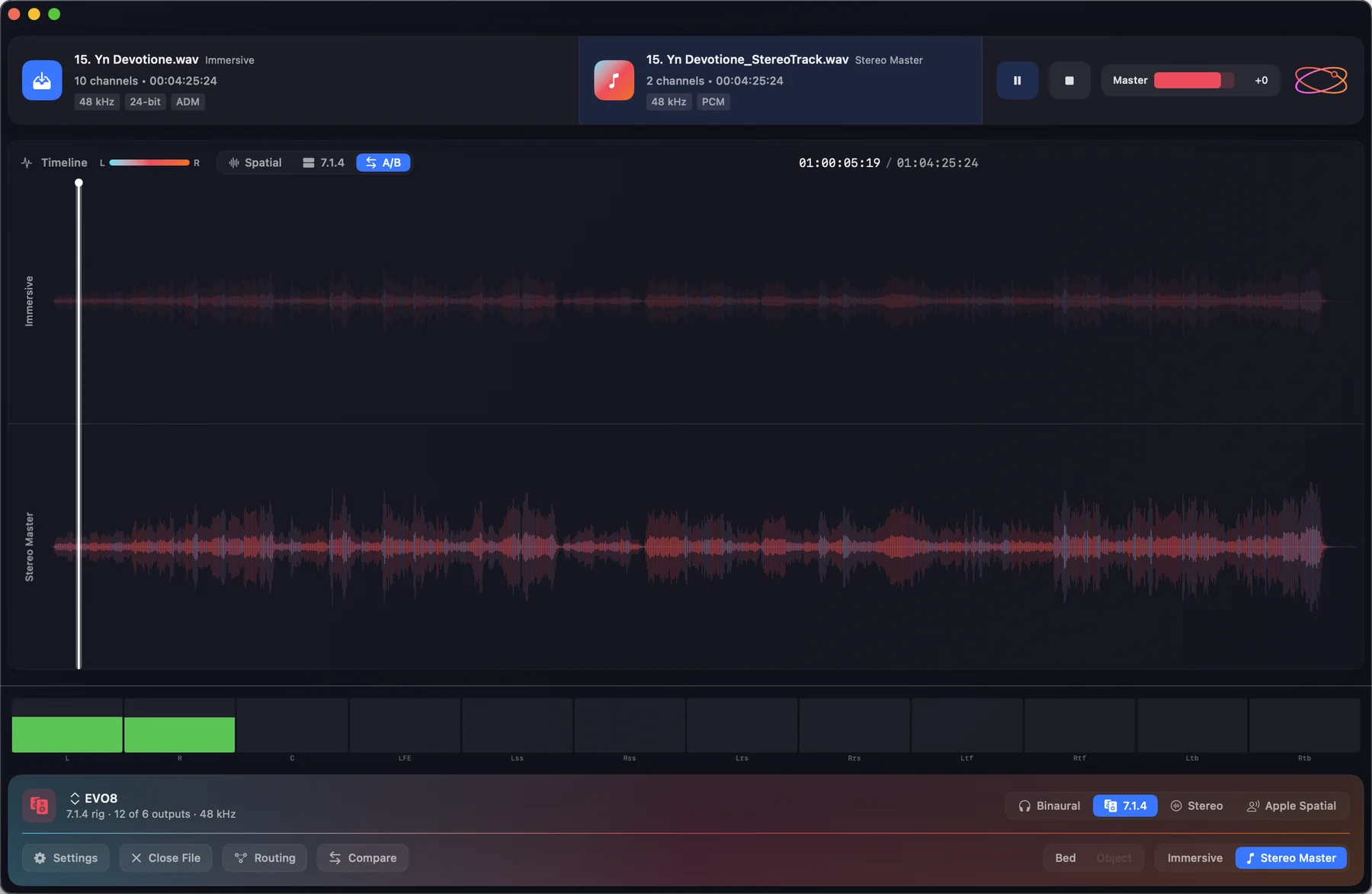
In Binaural monitoring, the stereo master plays as plain stereo, not spatialised.
Match levels while comparing
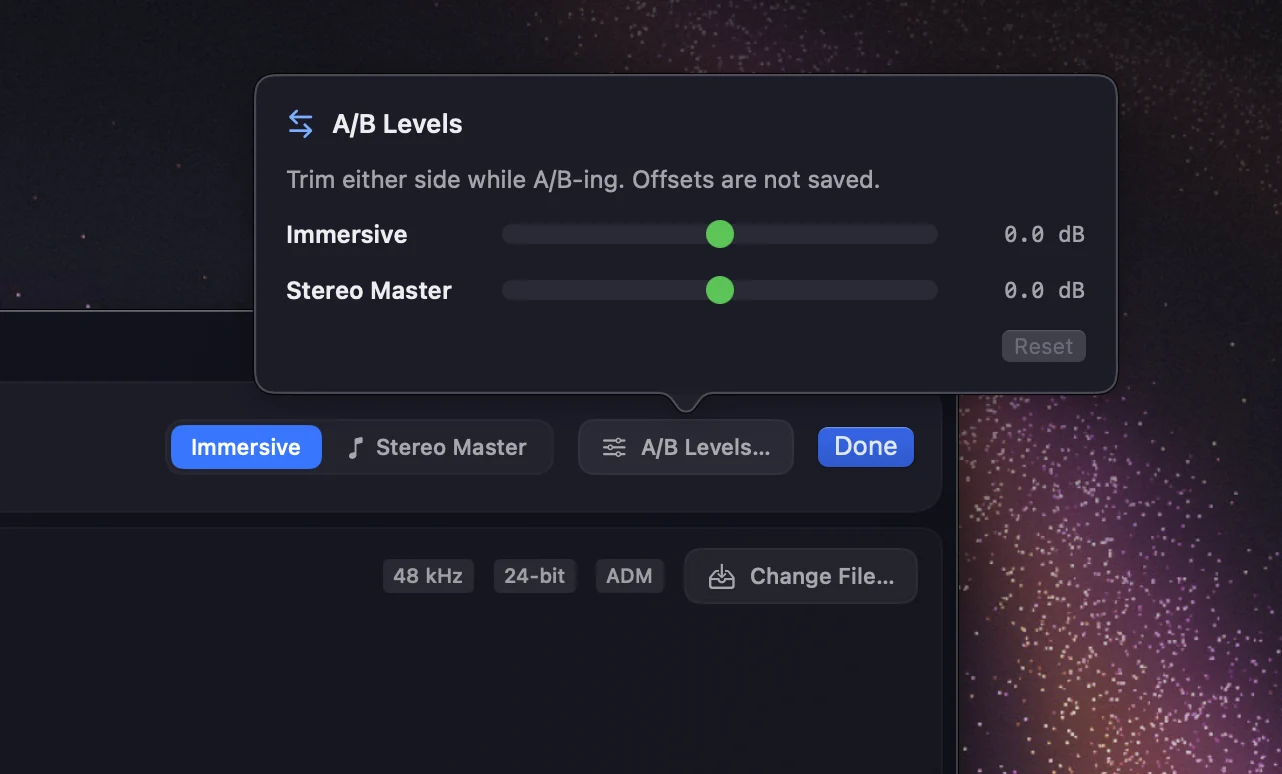
A/B Levels… trims either side so you can compare at matched loudness. The trims are not saved.