
Appearance
Command Palette (⌘K)
The Command Palette is one place to reach everything in Orbit by typing: a page, a window, a Preferences pane, a setting, a transport command, a marker, an object, or a file you opened recently. Press ⌘K, type a few letters, press Return.
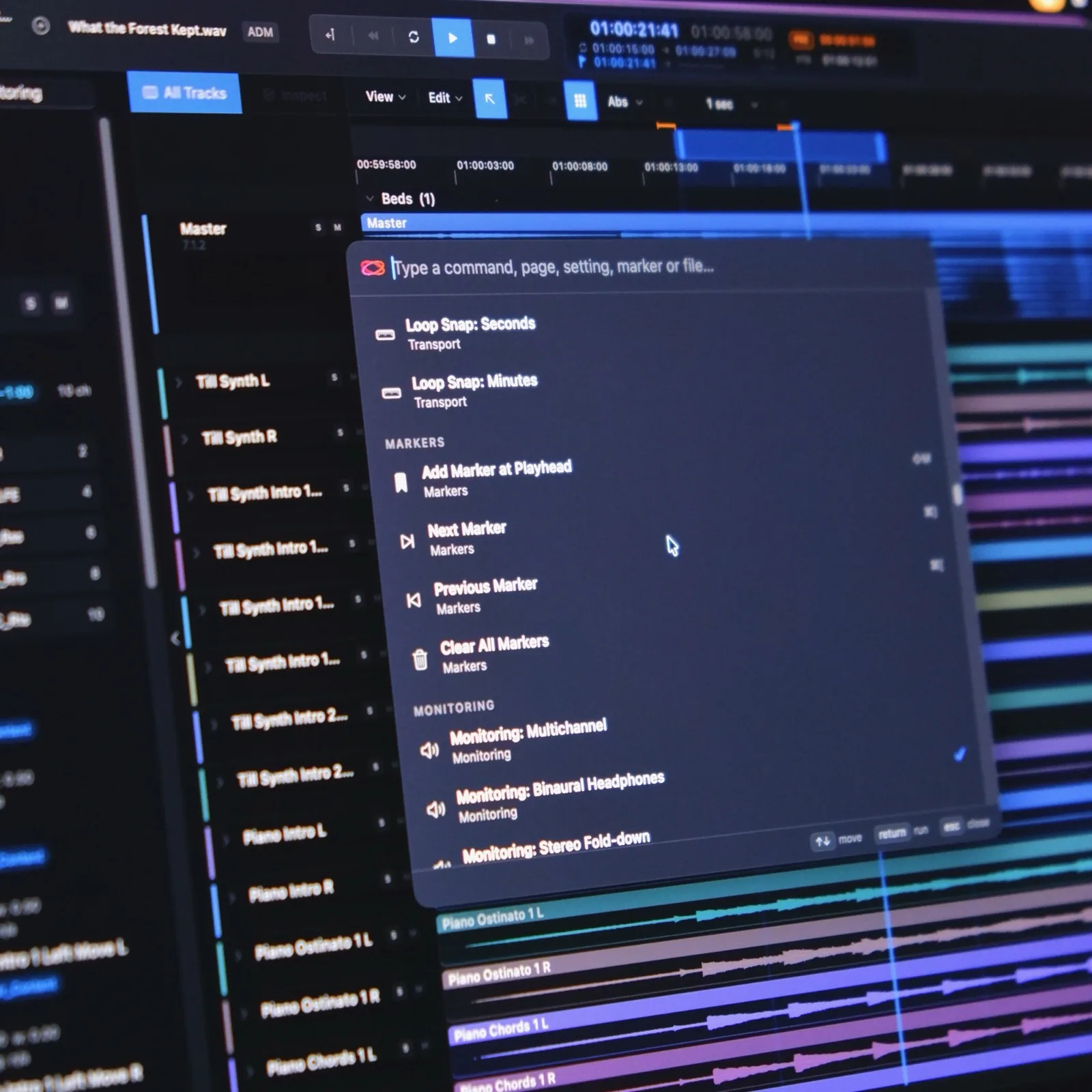
Opening it
- Press ⌘K anywhere in Orbit — including over Preferences and the export windows.
- Click the ⌘K button in the top bar, just left of the master fader.
- Choose Orbit → Command Palette… from the menu bar.
Press ⌘K again, Esc, or click outside the palette to close it.
What you can find
| Type | Examples |
|---|---|
| Pages | Go to: Overview, Playlist, Timeline, Video, Monitor, Analyser |
| Preferences | Preferences: Loudness, Preferences: Audio & Monitoring, … — every pane |
| Windows | Show Log, Show Marker List, Speaker Configuration, Routing Patchbay, Show History |
| Settings | Monitoring: Binaural Headphones, Panner: LBAP, Head Tracking, Grid Snap, Footer Loudness, Theme |
| Transport | Play / Pause, Return to Start, Set Region In / Out, Toggle Loop |
| Markers | Add Marker at Playhead, Next Marker, and every marker in the file by name |
| Objects | Every object in the loaded file, to solo it |
| Files | Open File…, and anything in your Open Recent list |
| Export | Export Audio…, Export PDF Report…, Export IAMF / Eclipsa… |
Settings rows show their current value with a tick, so the palette doubles as a quick readout: type monitoring to see which mode you're in before you change it.
Typing and choosing
- Matching is forgiving:
loudfinds Preferences: Loudness and Footer Loudness;go monfinds Go to: Monitor. Keywords count too —LUFSfinds the Loudness pane. - ↑ ↓ move the selection, Return runs it, Esc closes. Clicking a row runs it.
- With nothing typed, the palette shows the commands you used most recently first, then everything by group.
- Nothing you type in the palette triggers the app's single-key shortcuts; Space, I, O, L and the solo keys stay put until you close it.
Rows that look different
- Dimmed, with a reason — the command can't run right now (Load a file first, Set a region first). It stays in the list so you can see why.
- Lock — the command is part of Orbit Pro. Choosing it opens the Orbit Pro page.
- Confirm: — destructive commands (Clear All Markers, Clear Region, Close Session) ask for a second Return on the same row before they run.
- If a command fails, the palette stays open and shows the reason in red under the search field.
Notes
- The palette never activates, deactivates or signs out a licence, and never deletes routing presets or speaker groups. Those stay in Preferences, where they belong.
- Marker names, object names and file names only ever appear on your Mac. Orbit's usage telemetry records which command ran, never what it ran on. See Data & Privacy.
New in 1.6.0 (beta)
The Command Palette arrives in beta 6.